


Summary of How to Get an Analog Input on a PIC Microcontroller
This article guides users on reading analog inputs from a PIC microcontroller using C code in MPLAB X IDE. It details hardware setup with a PICkit 3, PIC1827 chip, LEDs, resistors, and a potentiometer, alongside software tools like XC8 Compiler and MCC Plugin. The process involves project configuration, initializing I/O ports, configuring the ADC module via Special Function Registers (SFRs), and writing code to capture and display analog values as LED states.Parts used in the PIC Analog Input Project:
- PICkit programmer
- PIC microcontroller (PIC1827)
- LEDs
- Resistors
- Analog sensor (potentiometer)
- MPLAB X IDE
- XC8 Compiler
- MPLAB Code Configurator Plugin
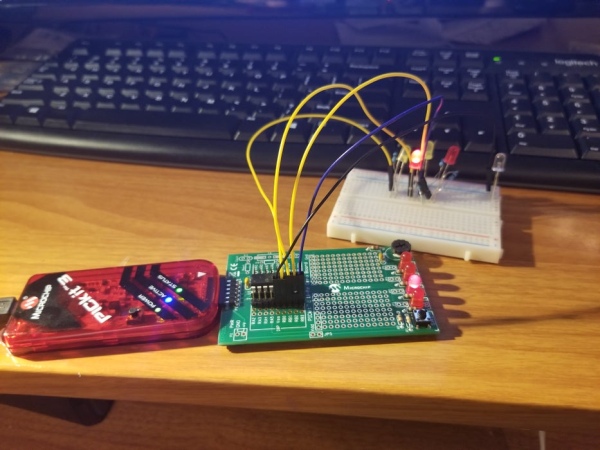
Step 1: Initial Requirments
Hardware Required
- PICkit programmer
- PIC microcontroller
- Some LEDs
- Some resistors (to limit the current sent to the LEDs)
- Sensor that produces an analog output (like a potentiometer)
Software Required
- MPLAB X IDE
- XC8 Compiler (this is because we are writing the program in C)
Download it here if you don't have it already
- MPLAB Code Configurator (MCC) Plugin
Plugin Setup details found here
Step 2: MPLAB X Project Setup
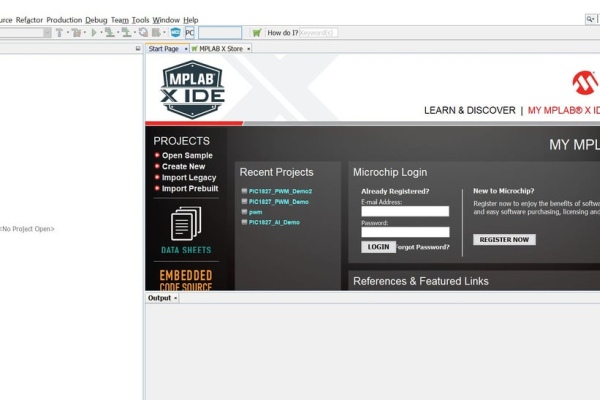
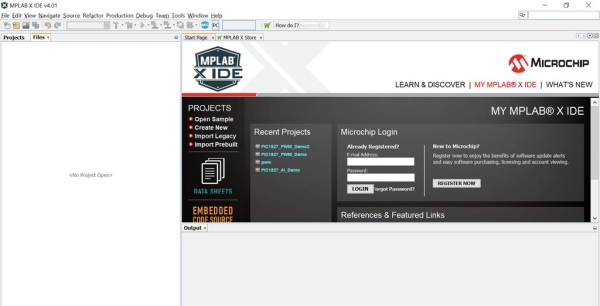
We want to create a new project in the MPLAB IDE.
- Open MPLAB X IDE
- File->New Project
- Category: = Microchip embedded and Projects: = Standalone Project
- Select your device from the dropdown list (mine is a PIC16F1827 for example)
- Debug Header = None
- Select your tool (I selected PICkit 3)
- Select Compiler (We will be using XC8)
- Select a project name+file location then click finish
Assuming you are using a PICkit programmer, you then have the option to power the microcontroller from it.
- Right click the project and select properties
- Select your PICkit programmer on the left hand side
- Select Power from the the dropdown menu
- check the power circuit from PICkit x box and set the voltage level to 3.375
- Press ok
It's now time to open the code configurator (MCC)
- Click Generate to compile the default main.c file (save the default config file then select yes)
- under the files tab you should now see the main.c file. Open it
Paste the following code
/**
Generated Main Source File
Company: Microchip Technology Inc.
File Name: main.c
Summary: This is the main file generated using PIC10 / PIC12 / PIC16 / PIC18 MCUs
Description: This header file provides implementations for driver APIs for all modules selected in the GUI. Generation Information : Product Revision : PIC10 / PIC12 / PIC16 / PIC18 MCUs - 1.45 Device : PIC16F1827 Driver Version : 2.00 The generated drivers are tested against the following: Compiler : XC8 1.35 MPLAB : MPLAB X 3.40 *
* (c) 2016 Microchip Technology Inc. and its subsidiaries. You may use this software and any derivatives exclusively with Microchip products.
THIS SOFTWARE IS SUPPLIED BY MICROCHIP "AS IS". NO WARRANTIES, WHETHER EXPRESS, IMPLIED OR STATUTORY, APPLY TO THIS SOFTWARE, INCLUDING ANY IMPLIED WARRANTIES OF NON-INFRINGEMENT, MERCHANTABILITY, AND FITNESS FOR A PARTICULAR PURPOSE, OR ITS INTERACTION WITH MICROCHIP PRODUCTS, COMBINATION WITH ANY OTHER PRODUCTS, OR USE IN ANY APPLICATION.
IN NO EVENT WILL MICROCHIP BE LIABLE FOR ANY INDIRECT, SPECIAL, PUNITIVE, INCIDENTAL OR CONSEQUENTIAL LOSS, DAMAGE, COST OR EXPENSE OF ANY KIND WHATSOEVER RELATED TO THE SOFTWARE, HOWEVER CAUSED, EVEN IF MICROCHIP HAS BEEN ADVISED OF THE POSSIBILITY OR THE DAMAGES ARE FORESEEABLE. TO THE FULLEST EXTENT ALLOWED BY LAW, MICROCHIP'S TOTAL LIABILITY ON ALL CLAIMS IN ANY WAY RELATED TO THIS SOFTWARE WILL NOT EXCEED THE AMOUNT OF FEES, IF ANY, THAT YOU HAVE PAID DIRECTLY TO MICROCHIP FOR THIS SOFTWARE.
MICROCHIP PROVIDES THIS SOFTWARE CONDITIONALLY UPON YOUR ACCEPTANCE OF THESE TERMS. */
#include "mcc_generated_files/mcc.h"
/* Main application *
//prototypes
void initComponents(); //Setup the output pin(s)
void configAI(); //Setup the AI pin(s)
void captureAI(); //Read the AI pin
void setLEDS(uint16_t); //Set LEDs to the AI value
void main(void)
{
// initialize the device
SYSTEM_Initialize();
// When using interrupts, you need to set the Global and Peripheral Interrupt Enable bits
// Use the following macros to:
// Enable the Global Interrupts //INTERRUPT_GlobalInterruptEnable();
// Enable the Peripheral Interrupts //INTERRUPT_PeripheralInterruptEnable();
// Disable the Global Interrupts //INTERRUPT_GlobalInterruptDisable();
// Disable the Peripheral Interrupts //INTERRUPT_PeripheralInterruptDisable();
initComponents(); //Setup Registers
while (1)
{
// Add your application code
captureAI();
__delay_ms(100);
}
}
void initComponents()
{
TRISB = 0x00; //Set PORTB as outputs
PORTB = 0x00; //Clear outputs
configAI();
return;
}
void configAI()
{
//Configure port
TRISA = 0xff; //Set PORTA as inputs
ANSELA = 0X01; //Set RA0 as an AI
//Configure ADC module //b[7] sets right justification, b[6:4] sets CS = FRC,
//b[2]+b[1:0] sets Vss and Vdd as refrences
ADCON1 = 0b11110000;
return;
}
void captureAI()
{
uint8_t delayTime = 20; //20ms acquasition delay
__delay_ms(delayTime);
ADCON0 = 0x01; //Turn ADC on
ADCON0 |= 1 << 1; //set b[1] "go" bit,VAR |= 1 << 3 sets bit 3 fyi
uint8_t doneBit;
do
{
//wait for ADC to complete (go bit switches to 0 automatically when done)
doneBit = (ADCON0 >> 1) & 1;
} while(doneBit); //while go bit is on (AD conversion in progress)
uint16_t result = (ADRESH << 8) | ADRESL; //combine two 8bit values into a 16bit val
setLEDS(result);
ADCON0 = 0x00; //Turn ADC off return;
}
void setLEDS(uint16_t AI)
{
//Light LEDs accordingly
if(AI >= 768) { PORTB = 0x08; }
else if(AI < 768 && AI >= 512 ) { PORTB = 0x04; }
else if(AI < 512 && AI >= 256) { PORTB = 0x02; }
else if(AI < 256 && AI >= 0) { PORTB = 0x01; }
}
/** End of File */
Step 3: Configure Your IO
The code you just pasted should work just fine for a PIC1827 but each PIC is a little bit different.
Check your data sheet to see which pin (and therefore PORT) you would like to hook up the AI to. I will be configuring pin RA0 since that is the pin wired to the potentiometer on my board. I will be using RB0-RB3 to display the LED outputs as well.
Special Function Register (SFR) Refresher:
- The TRIS (tri-state) register controls the direction (Input or Output). A bit value of 0 means it is configured as an output and a value of 1 indicates input. A quick way to remember is 0 = Output and 1 = Input.
TRISB = 0x05; //0b00000101 sets pins 0 and 2 as inputs for example
- The PORT register sets up the values actually being sent out to or read in from the pins
PORTB = 0x00; //sets all the outputs low for example
- The ANSEL (analog select) register configures the pins as analog inputs. a bit value of 1 will mark a pin as an analog input.
ANSELA = 0x09; // Sets RA0 and RA3 as analog inputs for example
Using this information, you may have to edit some of the code to reflect your specific setup.
Additonal ADC SFR Info:
ADRESH and ADRESL (ADC result high byte and low byte registers)
These SFRs simply store the 10bit ADC value.
ADCONx SFR is used to configure the ADC conversion registers
ADCON1 allows you to do 3 things
- Setting right/left justification when the 10bit ADC result gets stored in the 2 ADRES registers (right=[- - - - - - 9 8] [7 6 5 4 3 2 1 0], left = [9 8 7 6 5 4 3 2] [1 0 - - - - - -]).
- Set your clocksource (essentially the ADC works by tracking how long a capacitor takes to charge. You can set how long it takes to measure it by changing your clocksource. Depending on your clock speed, setting it too fast can result in the capacitor not charging fully, so be careful)
- Setting your negative and positive voltage references (we are just using Vss and Vdd).
ADCON0 allows you to do 3 things as well
- Set which analog channel you woulld like to look at
- Toggle the go/done bit on (once you toggle it on it begins reading in the value. it will toggle itself back off when its done)
- To enable/disable
Check out the data sheet for more detailed info
You Should now be ready to hit the good 'ol green play button and test your circuit out!
Source: How to Get an Analog Input on a PIC Microcontroller
Quick Solutions to Questions related to PIC Analog Input Project:
- How do I set up the initial project in MPLAB X IDE?
Create a new standalone Microchip embedded project, select your device, choose the PICkit 3 tool, and select the XC8 compiler. - Can I power the microcontroller from the PICkit programmer?
Yes, you can enable this by right-clicking the project properties, selecting the PICkit programmer, choosing Power, and checking the box to power the circuit. - What is the function of the TRIS register?
The TRIS register controls the direction of pins where a bit value of 0 indicates an output and a value of 1 indicates an input. - Which register configures pins as analog inputs?
The ANSEL register configures pins as analog inputs when a bit value is set to 1. - How do I start an ADC conversion in the code?
You toggle the go/done bit on in the ADCON0 register, which starts the reading process until it automatically switches off upon completion. - What voltage level was recommended for the PICkit power setting?
The guide suggests setting the voltage level to 3.375 volts in the project properties. - How are the ADC result values combined in the code?
The code combines the ADRESH and ADRESL registers into a single 16-bit value using bitwise operations. - Does the ADC clock source affect accuracy?
Yes, setting the clock source too fast relative to the clock speed can prevent the capacitor from charging fully, leading to inaccurate readings.
Related projects
Calculator Test using PIC24FJ64GA006 with Proteus Simulation
Introduction The Calculator Test using EASYHDL is a practical microcontroller project built on the PIC24FJ64GA006 and simulated in Proteus. This project demonstrates...
Programmers & ICSPPID Controlled Oven using TMS320F28027PT with Proteus Simulation
IntroductionThis project demonstrates a PID controlled oven implemented using a PICCOLO TMS320F28027PT microcontroller and verified through Proteus simulation.It is a practical microcontroller...
Programmers & ICSPPICCOLO Motor Controller Sample Design using TMS320F28023PT with Proteus Simulation
IntroductionThis project demonstrates a PICCOLO motor controller sample design implemented using the TMS320F28023PT Piccolo microcontroller and tested through Proteus simulation. It focuses...
Programmers & ICSP · PIC16F84APIC Musical Doorbell using PIC16F84A with Proteus Simulation
IntroductionThis microcontroller project demonstrates a musical doorbell built around a PIC16F84A and a simple piezo sounder.Using two push buttons, the system allows...
Programmers & ICSP · PIC16F877AEPE PIC/LCD Demo using PIC16F877 with Proteus Simulation
IntroductionThe EPE PIC/LCD Demo is a classic microcontroller project that demonstrates how a PIC16F877 can fully control a PG12864F graphical LCD.Designed as...
Programmers & ICSP · PIC16F628ADHT11 Low Cost Humidity Sensor using PIC16F628A with Proteus Simulation
IntroductionThis microcontroller project demonstrates how to interface a low-cost DHT11 temperature and humidity sensor with a PIC16F628A using a Proteus simulation environment.The...

Muhammad Bilal
I am a highly skilled and motivated individual with a Master's degree in Computer Science. I have extensive experience in technical writing and a deep understanding of SEO practices.