


Summary of Pico Timer Project using Pico with Proteus Simulation
This project shows how to use the Raspberry Pi Pico RP2040 Timer in MicroPython within a Proteus VSM simulation to blink the onboard LED at 1 Hz using a periodic timer callback, demonstrating non-blocking, interrupt-style embedded firmware suitable for beginners.Parts used in the Pico Timer Project using Pico with Proteus Simulation:
- Raspberry Pi Pico (RP2040)
- Onboard LED (built into the Pico)
- Timer module (software/hardware Timer on RP2040)
- Proteus VSM MicroPython simulation environment
- MicroPython runtime
Introduction
Timers are one of the most important features in embedded systems because they allow microcontrollers to perform tasks at precise intervals without constant CPU intervention. In this microcontroller project, we demonstrate how to use the Timer module of the Raspberry Pi Pico using MicroPython inside a Proteus simulation environment.
This project is a simple yet practical DIY electronics example where the onboard LED of the Raspberry Pi Pico blinks at a fixed interval using a hardware timer. Instead of relying on delay loops, the timer triggers a callback function periodically, making the design more efficient and closer to real-world embedded systems development.
The project is useful for beginners learning MicroPython programming, Proteus simulation, and basic firmware design for modern microcontrollers.
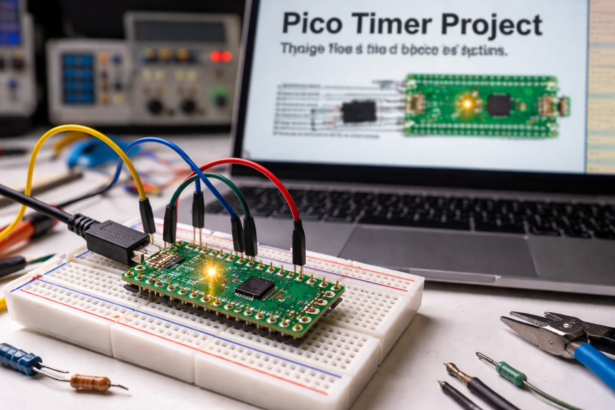
How the Project Works (Overview)
The project demonstrates how a hardware timer can automatically execute a task at fixed intervals.
The Raspberry Pi Pico initializes a Timer object configured in periodic mode with a frequency of 1 Hz. This means the timer triggers once every second. Each time the timer fires, it calls a callback function named blink().
Inside the callback function, the state of the onboard LED is checked. If the LED is currently ON, it turns OFF. If it is OFF, it turns ON. This alternating behavior results in a continuous blinking LED effect.
Because the timer controls the blinking process, the main program loop remains empty, showing how embedded firmware can rely on interrupt-like timer callbacks instead of blocking delays.
Workflow Explanation
The workflow of this Proteus simulation project is very straightforward:
Raspberry Pi Pico Initialization
The microcontroller boots and initializes the MicroPython runtime.GPIO Configuration
The onboard LED pin is configured as a digital output.Timer Initialization
A timer object is created and configured in periodic mode.Timer Callback Execution
Every second, the timer automatically triggers theblink()function.LED State Toggle
The callback function switches the LED state from ON to OFF or vice versa.Continuous Operation
The system runs indefinitely while the timer keeps triggering.
Key Features
Demonstrates Timer module usage in MicroPython
Uses Raspberry Pi Pico RP2040 microcontroller
Fully functional Proteus simulation project
Non-blocking LED blinking using hardware timers
Beginner-friendly embedded systems example
Minimal code with efficient event-driven firmware
Useful introduction to interrupt-style programming
Components Used
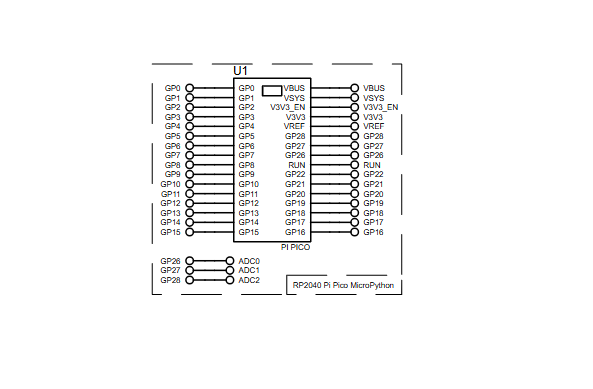
From the schematic and source code, the following components are used:
Raspberry Pi Pico (RP2040)
Onboard LED
Timer module
Proteus VSM MicroPython simulation environment
No external components are required because the Pico’s built-in LED is used for visualization.
Applications
Although this is a simple demonstration, the same concept is widely used in real embedded systems.
Common applications include:
LED status indicators
Real-time sensor sampling
Periodic data logging
Embedded system scheduling
IoT device task management
Communication polling systems
Watchdog monitoring tasks
Timers are fundamental in firmware development, especially when implementing real-time operations.
Explanation of Code
The firmware is written using MicroPython for the Raspberry Pi Pico and simulated in Proteus VSM.
Library Import
The program imports:
Pin→ Used for controlling GPIO pinsTimer→ Used to schedule periodic tasks
GPIO Setup
The onboard LED of the Pico is configured as an output pin, allowing the program to control its state.
Timer Object Creation
A Timer instance is created. This timer will later be configured to trigger at a specific frequency.
Callback Function
The function blink() is executed every time the timer fires. It simply toggles the LED state between ON and OFF.
Timer Configuration
The timer is initialized with:
Frequency: 1 Hz (once per second)
Mode: Periodic
Callback:
blink()function
Main Loop
The infinite loop keeps the program running while the timer operates in the background.
This structure demonstrates event-driven embedded firmware design.
Source Code
# Processor: PI PICO
# Compiler:  MicroPython (Proteus)

# Labcenter Sample Design


# Libraries
from machine import Pin, Timer

# Setup
led = Pin("LED", Pin.OUT)
timer = Timer()Complete Source Code
Proteus Simulation
In the Proteus VSM for MicroPython environment, the Raspberry Pi Pico model executes the MicroPython firmware exactly like real hardware.
When the simulation starts:
The Pico initializes the timer.
The timer triggers every 1 second.
The callback toggles the onboard LED.
The LED continuously blinks inside the Proteus simulation.
This allows developers to test embedded systems logic, debug firmware behavior, and validate microcontroller projects without physical hardware.
Conclusion
Complete File
Pico Timer Project using Pico with Proteus Simulation
Quick Solutions to Questions related to Pico Timer Project using Pico with Proteus Simulation:
- How does the project blink the LED?
The Timer is configured in periodic mode at 1 Hz and its callback function blink() toggles the onboard LED each second. - Can this be simulated without physical hardware?
Yes, the project runs in Proteus VSM for MicroPython and simulates the Pico executing the firmware. - What frequency is the timer set to?
The timer is set to 1 Hz, triggering once every second. - Does the main program use delay loops?
No, the main loop remains essentially empty because the timer callback handles blinking without blocking delays. - What MicroPython modules are used in the code?
The code imports Pin and Timer from the machine module. - What hardware components are required externally?
No external components are required since the Pico’s built-in onboard LED is used for visualization. - What is the purpose of the blink() function?
blink() is the timer callback that checks and toggles the LED state each time the timer fires. - Is this project suitable for beginners?
Yes, the project is described as beginner-friendly and useful for learning MicroPython, Proteus simulation, and basic firmware design.
Related projects
PIC16F877 Driving LCD in 4-Bit Mode using PIC16F877 with Proteus Simulation
Introduction This microcontroller project shows how a PIC16F877 can drive an LCD display using 4-bit mode inside a Proteus simulation.The project demonstrates...
Beginner Tutorials · PIC18F4550PICDEM FS USB CDC Evaluation Board using PIC18F4550 with Proteus Simulation
Introduction The PICDEM FS USB CDC Evaluation Board is a practical microcontroller project built around the PIC18F4550, designed to demonstrate USB communication...
Beginner TutorialsPIC12CE518 I2C EEPROM using PIC12CE518 with Proteus Simulation
Introduction This microcontroller project demonstrates how to write and read data using the internal I2C EEPROM of the PIC12CE518 and visualize the...
Beginner Tutorials · PIC16F84APIC Stepper Motor Controller using PIC16F84A with Proteus Simulation
Introduction Stepper motors are widely used in embedded systems and DIY electronics projects where precise position control is required. This PIC Stepper...
Beginner TutorialsWhat is a TVS diode? Working principle and parameters of TVS diode
TVS (Transient Voltage Suppressor) diode is a component specially used for protecting circuits. It can absorb excessive voltage pulses in an instant...
Beginner TutorialsA Comprehensive Guide to Embedded Microprocessors: Everything You Need to Know
Embedded microprocessors are small computer chips that we found in nearly all electronic devices. From the laptop to the PC, mobile phone,...

Ibrar Ayyub
I am an experienced technical writer holding a Master's degree in computer science from BZU Multan, Pakistan University. With a background spanning various industries, particularly in home automation and engineering, I have honed my skills in crafting clear and concise content. Proficient in leveraging infographics and diagrams, I strive to simplify complex concepts for readers. My strength lies in thorough...