


Summary of How to Download MPLAB X IDE Safely
MPLAB X IDE is Microchip’s NetBeans-based integrated development environment for PIC, dsPIC, AVR, SAM, and CEC microcontrollers, offering debugging, compiling, and project management features. Version 5.15 adds AVR and SAM support; future releases (5.30/5.40) change packaging and Java/OS support. Key features include one-click build/program/debug, call graph, multiple configurations and compilers, live parsing, multi-tool debugging, code navigation/templates, local history, formatting, tasks, preprocessor view, memory views, project summary, firmware restore, disassembly, variable/call-stack views, source control integrations, window customization, and plug-in support.Parts used in theMPLAB X IDE Project:
- MPLAB X IDE (version 5.15 and later)
- MPLAB Code Configurator
- MPLAB ICD 4 in-circuit debugger and programmer (SAM support only at this time)
- MPLAB PICkit 4 in-circuit debugger and programmer
- MPLAB Snap in-circuit debugger
- MPLAB XC8 C Compiler (for AVR devices)
- MPLAB XC32++ C Compiler (for SAM devices)
- AVR GCC Compiler (for AVR devices)
- Arm GCC compiler (for Arm architecture SAM devices)
- Device File Pack (DFP) system (for product support releases)
- Oracle JRE version 8 (used up to MPLAB X IDE 5.35)
The compiler, target device, device support files, project configuration and programmer or debugger all need to work together. This is especially important with firmware that is already in production, where changing a development component can produce differences even when the source code itself has not changed.
This guide focuses specifically on setting up MPLAB X IDE for current development and keeping the build environment predictable across projects and workstations.
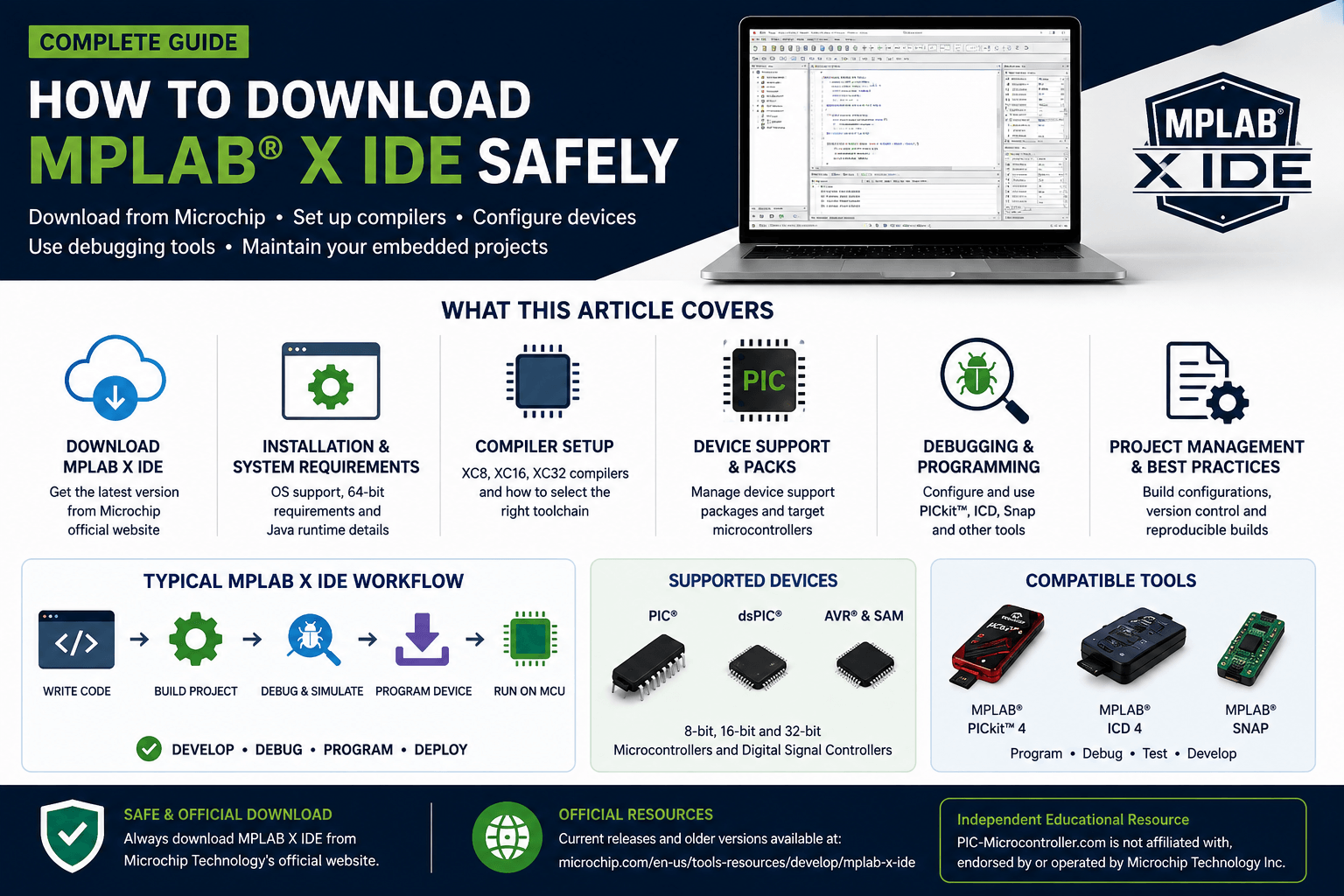
PIC-Microcontroller.com does not host or distribute MPLAB X IDE installers. The software should be obtained directly from Microchip Technology.
Download MPLAB X IDE From Microchip
The safest place to obtain MPLAB X IDE is Microchip Technology's official product page.
Using the publisher's own page means the current software, supported operating systems, release information and applicable license terms remain under Microchip's control.
External resource: This link opens Microchip Technology's official website. MPLAB X IDE downloads and software terms are provided by Microchip.
Plan the Toolchain Before Installing Everything
For a new project, the development environment can usually be assembled around the target microcontroller and currently supported software. An established project requires more care because its existing compiler, build settings and development hardware may already be part of a validated workflow.
Useful information includes:
- MPLAB X IDE version
- Compiler family
- Compiler version
- Target MCU
- Device support version
- Programmer or debugger
- Build configuration
- Optimization settings
- Include paths
- External libraries
- Linker configuration
- Configuration bits
If the project is already in production, preserve the released HEX file or other programming image as well. That gives you a reference when validating a new build environment.
Compiler Selection Matters
MPLAB X IDE manages the project, but the compiler generates the machine code that eventually runs on the microcontroller.
That means compiler selection is not a minor configuration detail.
A change in compiler version can affect:
- Optimization
- Code size
- Memory allocation
- Warnings
- Libraries
- Generated instructions
- Linker behavior
- Timing-sensitive code
A project can compile without errors while still producing a different binary from an earlier release.
For maintained firmware, record the compiler version used for every approved release.
If several compiler versions are installed on the same workstation, verify the compiler assigned to the actual project configuration rather than assuming MPLAB X has selected the expected one.
Keep Build Configurations Under Control
A single project may contain several configurations.
For example:
- Debug build
- Release build
- Production build
- Bootloader build
- Alternative target MCU
- Different hardware revision
- Different compiler configuration
- Different programmer/debugger
Each configuration can carry its own device selection, compiler options, preprocessor definitions and programming hardware.
That flexibility is useful, but it also means the wrong configuration can be built without immediately producing an obvious error.
Device Support Is Part of the Environment
Device support can change independently from the main MPLAB X installation.
A newer device support package may introduce support for additional processors or update information for existing devices.
For normal development this is useful.
For firmware that needs to be reproduced years later, it means another dependency should be documented.
Record the device support version alongside:
IDE → compiler → target device → project configuration
This makes it much easier to recreate the same environment later.
Programmer and Debugger Compatibility
A project is not fully migrated until the required programming and debugging hardware works correctly.
Before changing the development environment, verify support for the hardware actually used by the project.
Important factors can include:
- Programmer/debugger model
- Hardware revision
- Device family
- USB requirements
- Debug interface
- Programming interface
- Target voltage
- Firmware compatibility
For a new project, current programming hardware usually provides a better long-term development path.
For an existing production system, replacing the programmer can be a separate engineering change that deserves its own validation.
Opening an Existing MPLAB X Project
Always preserve the original project before opening it in a substantially newer development environment.
Create a copy and perform the update there.
Once the project opens, check the following before relying on the generated firmware:
- Target device
- Compiler
- Compiler version
- Build configuration
- Configuration bits
- Include paths
- Libraries
- Linker scripts
- Programmer/debugger
- Memory usage
Do not assume that successfully opening and compiling a project means that every previous setting has been reproduced.
Check Program and Data Memory
Compare memory usage after changing the development environment.
Look at:
- Flash usage
- RAM usage
- Reserved areas
- Bootloader regions
- EEPROM or nonvolatile storage
- Custom linker sections
This becomes especially important when firmware already uses a large percentage of the available memory.
A compiler update can change generated code size even when the application source remains unchanged.
Verify Configuration Bits
Configuration settings can affect the microcontroller before normal application execution begins.
Depending on the device, these settings may control:
- Oscillator configuration
- PLL operation
- Watchdog timer
- Brown-out reset
- Programming mode
- Debug settings
- Code protection
- Reset behavior
Review these settings manually after moving a project.
A project can build successfully and still fail on hardware because one configuration option changed.
Keep Debug and Release Builds Separate
- A debug configuration should not automatically be treated as the final production configuration.
- Debugging may reserve processor resources or use different optimization settings.
- Diagnostic code or debug-specific preprocessor definitions may also be active.
- The final firmware should eventually be tested using the same configuration that generates the production programming image.
- For each released firmware version, retain:
Source revision + IDE version + compiler version + build configuration + released binary
That creates a much stronger record than simply storing the source files.
Using Multiple Compiler Versions
There are practical reasons to keep several compiler releases available on the same engineering workstation.
- Different products may have been validated using different compiler generations.
- If one project was released using a particular compiler, installing a newer compiler does not automatically mean that project should be moved to it.
- Upgrade when there is a technical reason.
- Avoid changing a stable toolchain only because a newer version has become available.
Debugging Optimized Firmware
Optimization can make source-level debugging less obvious.
The compiler may:
- Inline functions
- Remove unused variables
- Keep values in registers
- Rearrange instructions
- Combine operations
This means the debugger may not always move through the C source exactly as expected.
When investigating a firmware problem, understand which optimization settings are active.
The final release should still be verified using the optimization level intended for deployment.
Production Programming
Development and production programming should be treated as separate workflows.
Engineers may need full access to the source code and IDE.
A production operator normally needs only an approved programming image and a controlled programming process.
Where practical, associate the production image with:
- Firmware revision
- Hardware revision
- Checksum
- Configuration
- Programming procedure
This reduces the chance of an unintended rebuild being programmed into production hardware.
Need the Original MPLAB IDE 8?
MPLAB X IDE is not the same development environment as the original MPLAB IDE 8 series.
Older PIC projects may still depend on the earlier environment.
Finding Older MPLAB X Releases
Some existing projects require an earlier MPLAB X release because of compiler, device-support or programming-hardware compatibility.
Microchip maintains archived MPLAB development software for these cases. If a project already has a documented working MPLAB X version, check that requirement before moving it to a newer release.
External resource: Legacy development software is supplied through Microchip Technology's official archive. PIC-Microcontroller.com does not mirror these installers.
Final MPLAB X Setup Checklist
Before considering a development environment ready for regular use, confirm:
- Correct target device
- Correct compiler
- Correct compiler version
- Correct device support
- Correct build configuration
- Correct programmer/debugger
- Correct configuration bits
- Expected memory usage
- Successful hardware programming
- Firmware behavior verified on the target board
The objective is not simply to install MPLAB X IDE.
The objective is to create a development environment that can repeatedly produce the expected firmware for the target hardware.
Trademark and Affiliation Notice
MPLAB®, PIC®, dsPIC® and AVR® are trademarks or registered trademarks of Microchip Technology Incorporated.
PIC-Microcontroller.com is an independent educational website and is not affiliated with, authorized by, sponsored by, endorsed by or operated by Microchip Technology Incorporated.
MPLAB software referenced on this page is provided through Microchip Technology's official website. PIC-Microcontroller.com does not host, reproduce or distribute MPLAB software or Microchip documentation.
Quick Solutions to Questions related toMPLAB X IDE:
- Can MPLAB X IDE evaluate AVR and SAM microcontrollers?
Yes. MPLAB X IDE version 5.15 adds support to evaluate most AVR families and many SAM MCU families including SAM E70/S70/V71 and SAM D21/C21. - Does MPLAB X IDE require an Oracle JRE license?
No. No Oracle JRE license will be required to use any version of MPLAB X IDE. - Will MPLAB X IDE distribute Java with the IDE?
Yes. A license-free version of Java will be distributed with MPLAB X IDE starting in version 5.40. - When will MPLAB X IDE move to 64-bit only operating systems?
Operating system support for Windows, Mac OS and Linux will move to 64-bit only starting with MPLAB X IDE version 5.40. - How can I extend MPLAB X IDE support for devices on 32-bit systems?
Apply a Device File Pack (DFP) to MPLAB X IDE version 5.30 or 5.35 to extend the life of the IDE for 32-bit operating systems. - What development tools can be used to debug and compile AVR and SAM devices?
Tools listed include MPLAB Code Configurator, MPLAB ICD 4 (SAM support), MPLAB PICkit 4, MPLAB Snap, MPLAB XC8, MPLAB XC32++, AVR GCC, and Arm GCC. - What does the one-click Make, Program, Debug operation do?
It performs Make, connects to the hardware tool, programs the target, and starts a debug session or execution in a single action, though individual steps can also be done separately. - Can MPLAB X IDE use multiple compiler versions simultaneously?
Yes. You can install many compiler versions and select specific versions per project or configuration, allowing use of multiple instances within the IDE. - Does MPLAB X IDE support importing MPLAB 8 projects?
Yes. You can import existing MPLAB 8 projects and continue development within MPLAB X IDE using the same compilers and debug tools. - What debugging views help inspect compiled code and variables?
The IDE provides a Disassembly window, Disassembly listing interleaved with source, Variables and Call Stack windows, memory views, and a local history utility.
Related projects
Download Legacy MPLAB IDE 8 from Microchip
The original MPLAB® IDE 8 series is still relevant when maintaining older PIC® and dsPIC® projects that were created before MPLAB X...
IDEs & CompilersDownload MPLAB IDE v8.92 from Microchip
MPLAB® IDE v8.92 belongs to the final generation of the original MPLAB IDE 8 development environment. It still appears in older PIC®...
IDEs & CompilersSoftware UART (SoftUART) using TMS320F28027 Piccolo with Proteus Simulation
IntroductionCreating reliable serial communication without a hardware UART might sound tricky, but this SoftUART project proves how flexible embedded systems can be....
IDEs & CompilersMastering PIC 24F Series: A Comprehensive Guide with MPLAB and Proteus
Introduction The field of embedded systems plays a crucial role in modern society, with a myriad of applications across various sectors such...
IDEs & CompilersDigital Clock using PIC Microcontroller Interrupt – XC8
A Real Time clock (Digital Clock) can be made easily by using Timer 1 of a PIC Microcontroller. The Timer1 module exists...
IDEs & CompilersMicrochip Mobile Product Selector
Platform: Android (Mobile Devices) - IOS (Apple Mobile Devices) Android (Mobile Devices Snapshots) Descriptions: A complete guide to all of Microchip’s products...

Ibrar Ayyub
I am an experienced technical writer holding a Master's degree in computer science from BZU Multan, Pakistan University. With a background spanning various industries, particularly in home automation and engineering, I have honed my skills in crafting clear and concise content. Proficient in leveraging infographics and diagrams, I strive to simplify complex concepts for readers. My strength lies in thorough...