


Summary of Record Infrared Codes of Any Remote Control Unit for Usage with Linux Infrared Remote Control (LIRC) on Raspberry Pi
This article explains how to repurpose orphaned remote controls for a Raspberry Pi by capturing infrared codes and mapping them using the LIRC package. It guides users through enabling the IR interface, installing LIRC, testing signals, and recording codes with the `irrecord` tool to create a custom configuration file.Parts used in Reusing Remote Control with Raspberry Pi:
- Raspberry Pi
- Infrared (IR) interface
- Remote control unit
- LIRC package
- irrecord program
- Terminal emulator
- LIRC daemon
- my_remote_control.conf configuration file
Introduction
The remote controls that are orphaned when the device they control stopped working are reusable on your Raspberry Pi. After completing this instructable, you may be interested in trying out the following instructables:
Reuse Unwanted Remote Control to Shutdown and Reboot Raspberry Pi
Reuse Unwanted Remote to Launch Graphical Application in Raspberry Pi
Scope
This instructable will show how to use program irrecord to:
- Capture infrared codes of any remote control
- Map the infrared codes with Linux Infrared Remote Control (LIRC) events
Target Readers
Anyone with Raspberry Pi that has infrared (IR) interface)
Any remote control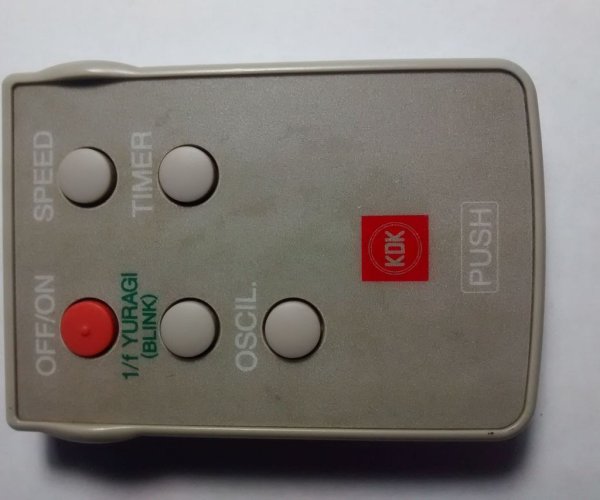
Step 1: Add Infrared Interface to Your Raspberry Pi
Complete the steps in my instructable of the above.
Step 2: Install Linux Infrared Remote Control (LIRC) package
The program irrecord is provided by the LIRC package.
Complete the steps in my instructable of the above.
Step 3: Test whether the remote control unit is transmitting any IR signal
Complete the steps in my instructable "Use Raspberry Pi To Test Your Remote Control"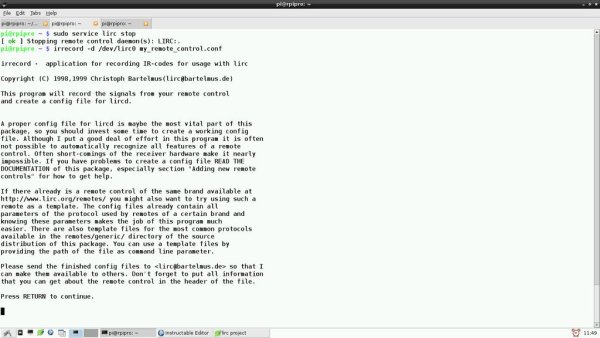
Step 4: Record infrared (IR) codes of the remote control and map it to LIRC events
Get your remote control unit ready
Open terminal emulator of Raspberry Pi.
Stop the LIRC daemon
Run the program irrecord
When the irrecord program wizard ask you to map key names, open another terminal emulator and list all the possible key names available in LIRC so that you can choose the best one that fits your requirement. The output of the command below is shown in the screenshot
Finally, the irrecord program will process your input and create a configuration file ~/my_remote_control.conf as shown in the third screenshot.
For more detail: Record Infrared Codes of Any Remote Control Unit for Usage with Linux
Quick Solutions to Questions related to Reusing Remote Control with Raspberry Pi:
-
What is the main goal of this project?
The project aims to reuse orphaned remote controls on a Raspberry Pi by capturing their infrared codes and mapping them to Linux Infrared Remote Control events. -
Which program is used to capture infrared codes?
The program irrecord is used to capture infrared codes of any remote control. -
How do I map infrared codes to LIRC events?
You map the codes by running the irrecord program wizard which allows you to assign key names from available LIRC options. -
Where is the final configuration file saved?
The irrecord program creates the configuration file at ~/my_remote_control.conf. -
What must be done before running the irrecord program?
You must stop the LIRC daemon before running the irrecord program. -
How can I find available key names for mapping?
You can list all possible key names available in LIRC by opening another terminal emulator and running a specific command. -
Is an infrared interface required for this project?
Yes, the target readers must have a Raspberry Pi that includes an infrared interface.
Related projects
Interfacing and Communicating with the 68HC05/705 Microcontroller Family
This document provides information necessary to interface the Andromeda Research EPROM+ programming system to certain members of the Motorola 68HC05/705 microcontroller family....
Other MicrocontrollersAVR Microcontroller Based Electronic Voting Machine
Introduction The use of electronic voting machines has become common in many countries due to technological advancements. However, the emergence of the...
Other MicrocontrollersSimulating the Water Cycle in a Desert
Abstract: The objective of my project is to create an automated watering system for succulent plants. In this project, an Arduino microcontroller...
Other MicrocontrollersHow to get started with TensorFlow Lite for Microcontrollers
Want to build your own TinyML application? This is a detailed approach to getting started with TensorFlow Lite for Microcontrollers! Story Introduction...
Other MicrocontrollersTemperature Access Point Using an AVR® DA Microcontroller
Inspired by COVID-19 prevention, we have developed a system that measures the temperature of persons before they enter a building by Temperature...
Other MicrocontrollersIn-depth: TensorFlow Lite for Microcontrollers – Part 2
This blog details the inner workings of TensorFlow Lite for Microcontrollers and the role of Flatbuffers in them. Story of TensorFlow Lite...

Ibrar Ayyub
I am an experienced technical writer holding a Master's degree in computer science from BZU Multan, Pakistan University. With a background spanning various industries, particularly in home automation and engineering, I have honed my skills in crafting clear and concise content. Proficient in leveraging infographics and diagrams, I strive to simplify complex concepts for readers. My strength lies in thorough...