
Summary of USB Interface Board Driver Installation PIC18F4550
This article explains first-time setup for a PIC18F4550 USB interface board: installing Microchip USB Framework (MCHPFSUSB v1.2) or drivers, programming the PIC with demo HEX via a JDM, and entering BOOTLOAD mode (hold RESET, press BOOTLOAD, release) so Windows can detect and install drivers from C:MCHPFSUSBPcMCHPUSB DriverDebug. Successful installation is indicated by alternating LED1 and LED2 flashing. Troubleshooting tips include checking soldering and USB cable wiring.
Parts used in the USB Interface Board Driver Installation:
- PIC18F4550 microcontroller
- USB interface development board (Demo Interface Board)
- USB cable
- JDM serial programmer
- Computer running Windows (XP/Vista/7)
- Microchip USB Framework (MCHPFSUSB v1.2) or USB drivers
USB Interface Board Driver Installation
Connecting PIC18F4550 First Time
This tutorial will try to explain how to make your interface development board to work for the first time. Without a Demo hex code inside PIC18F4550’s flash memory, it won’t respond even if we connect the Demo Interface Board Directly to computer. In my previous post we have successfully loaded the Demo Hex Code into the PIC18F4550 using a Serial JDM programmer, so now lets continue with further steps. For continuing further step of Driver Installation and BOOTLOADING operation you need to download and Install USB MICROCHIP FRAMEWORK from microchip website. The framework contains various resources, sample firmware and various Docs that can help you further learning in PIC microcontrollers. The framework that I have used is version 1.2v . You can download this framework directly from microchip website. There are other versions of the Microchip stack also. You can install the version you like or you can also proceed with this v1.2 .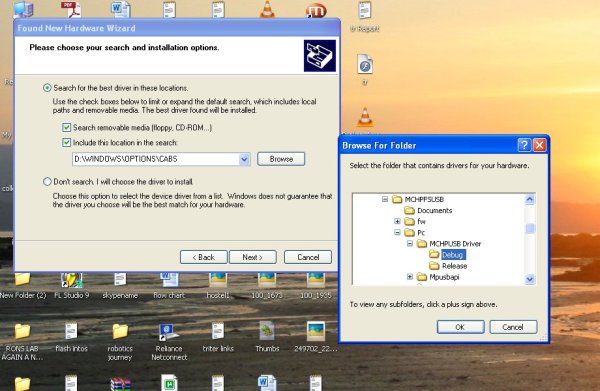
Microchips USB framework MCHPFSUSB v 1.2
Or you can Download the Dirvers Directly from here. If you want just the drivers.
– Windows XP USB Interface Driver
– Windows Vista/Windows 7 Driver
This framework has also many other versions, it contains various software, samples, examples and demo firmware for learning and practicing. Microchip keeps on updating this framework time to time by releasing new version. The firmware provides nice Resources for make learning more easy.
All the packages and resources after Installation of framework will be installed by default in the C:\ MCHPFSUSB folder .
PIC18F4550 DRIVER INSTALLATION
Now lets get back to our main topic. After the demo code is inserted into the PIC18F4550 first time with a JDM as mentioned here , the next step is to chip off the PIC18F455O from the JDM (after 1st time loading of HEX code) and insert the PIC18F4550 microchip back into the USB INTERFACE BOARD.
Connect the USB INTERAFEC BOARD usb cable to the USB port of your computer. At first Attempt the USB DEMO BOARD wont show any activity ( neither the leds will start to flash nor windows will ask for drivers) .
For starting the Board, You need to initialize it in BOOTLOAD MODE. In the USB Board there are two buttons,one is the RESET BUTTON and another is the BOOTLOAD button.
HOLD the RESET BUTTON (keep it pressed) and then hit the BOOTLOAD button (once) and then release both buttons. The window will then detect the PICISF4550 USB hardware and ask for Drivers for this PIC18F4550 board.
If the windows is not asking for drivers then there might be some problem with USB INTERFACE BOARD. Check if the soldering is done properly. Check if the USB cables are connected properly , check if you have done any mistake with polarity of the USB cable, check it with a USB pin out diagram for possible mistakes with USB cables..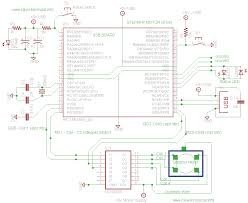
Don’t forget the step, keep the RESET button pressed then then hit the BOOTLOAD button and then release both the buttons , the windows will ask for drivers with a “Windows USB device plug Sound Notification , that usually windows gives in case of connecting any flash drives and other device)
The Drivers for this USB device is located in
C:\MCHPFSUSB\Pc\MCHPUSB Driver\Debug folder.
When the windows will ask for drivers, go for manual driver search, and browse to above mention location folder for Drivers.
After the Drivers are Installed Led1 and Led 2 will start to flash alternatively .Which means that your USB device is Perfectly communicating with your PC.
For more detail: USB Interface Board Driver Installation PIC18F4550
- How do I make the PIC18F4550 board detectable by Windows the first time?
Program the PIC18F4550 with the demo HEX via JDM, insert it into the USB interface board, start the board in BOOTLOAD mode by holding RESET, pressing BOOTLOAD once, then releasing both; Windows will then ask for drivers. - Where do I get the drivers for the PIC18F4550 USB board?
Drivers are located in C:MCHPFSUSBPcMCHPUSB DriverDebug after installing the Microchip USB Framework, or you can download OS-specific drivers from the links in the article. - What framework version is used in the tutorial?
The tutorial uses Microchips USB framework MCHPFSUSB version 1.2. - What indicates successful driver installation?
LED1 and LED2 will start flashing alternately, indicating the USB device communicates with the PC. - What should I do if Windows does not ask for drivers after entering BOOTLOAD mode?
Check soldering, USB cable connections, and USB cable pin polarity; ensure you performed the RESET then BOOTLOAD button sequence correctly. - Can I install a different version of the Microchip USB framework?
Yes, the article states you can install other versions, though it used v1.2. - Do I need to remove the PIC18F4550 from the JDM after programming?
Yes, after the first-time loading of the HEX with JDM, remove the PIC18F4550 and insert it back into the USB interface board. - What happens if the USB demo board shows no activity when first connected?
The board needs to be initialized in BOOTLOAD mode; without that the board will not respond or prompt for drivers.
