


News
Aug. 13, 2009: There was a problem with the C code I posted initially, which I fixed. Get a new version from below if you tried the code and it didn't work.
Facts
- data sheet http://ww1.microchip.com/downloads/en/devicedoc/35007b.pdf
- pins:
Writing and compiling code for the 16F84A
The thing is, there are people in this world who like to program in assembly. I'm not one of them. We'll do C. This is what's needed to compile C code for the PIC.
- a C compiler; I'm using the freely available SDCC
- download web page: http://sourceforge.net/projects/sdcc/files/
- link to the latest Windows version at this time: http://downloads.sourceforge.net/project/sdcc/sdcc-win32/2.9.0/sdcc-2.9.0-setup.exe
- a linker; I'm using the freely available gpasm/gplink part of gputils
- download web page: http://sourceforge.net/projects/gputils/files/
- link to the latest Windows version at this time: http://downloads.sourceforge.net/project/gputils/gputils-win32/0.13.7/gputils-0.13.7.exe
Installing SDCC and gputils
Download the installation files from the links above, save them on your hard drive, then double click them. When asked if the path to the binaries should be added to the PATH answer yes.
Compiling C programs
Best to do an example. Let's say we want to alternately light two LEDs. This little program will do it.
/* begin file led1.c */
/* the following three lines include some needed header files */
#include <stdlib.h>
#include <stdio.h>
#include <pic16f84a.h>

/* declare a variable i which we will use as counter */
unsigned int i;

/* define selected target processor */
#define __16F84A

void main(void) {
  /* set both ports as outputs */
  TRISA = TRISB = 0;

  /* start with 0V on all output pins/ports */
  PORTA = 0;
  PORTB = 0;

  /* an infinite loop; for ever run the following code */
  while(1) {
    PORTB = 0b00010000;  /* put 5V on pin 9 */

    /* do nothing for 40000 cycles
       you can think of this as a pause */
    for(i=0; i<40000; i++);

    PORTB = 0b00001000;  /* put 5V on pin 10 */

    for(i=0; i<40000; i++);  /* pause again */
  }
}
/* end file led1.c */
Edit a file named led1.c and write the code above in it. You can also download the file from this link: led1.c To compile led1.c, run this command:
sdcc -mpic14 -p16f84a led1.c
If it compiled successfully, there will be a led1.hex file in the same directory. This is the file that you can load in picprog and write it onto the chip. Otherwise, you can download led1.hex from this link: led1.hex
Writing the program onto the chip
Once the .hex file is ready, I use a tiny program name picprog to flash it onto the chip. This program is also free and can be found at this link:
http://pic16f84.hit.bg/
On that page there is a very simple circuit which uses power from the serial port of a PC. Obviously picprog uses the serial port to communicate with the PIC16F84A.
picprog.exe is a standalone executable, meaning that you can just put it on your Desktop and doubleclick on it to run it. Once open, the program can:
- load a .hex file from the disk
- erase the contents of the PIC memory
- write the .hex to the PIC
Note: the following picprog options worked for me
- Oscillator: XT
- Configuration: Watchod timer = off, Power up timer = on, Code protection = off
- of course, choose the com port that you plugged your serial cable into
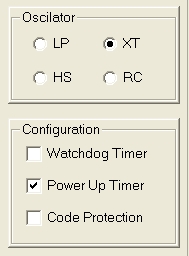
For the led1.c/led1.hex example above, while in picprog:
- open the file led1.hex
- set the options as described above
- erase the chip
- write
- verify by exiting picprog, starting it again, and then clicking on the "Read" button, which should retrieve the program from the chip
Note: sometimes "Write" failed. I just exited picprog, wiggled the breadboard wires, then tried again. Don't know why it sometimes fails writing.
Running the program/chip
Once the program has been successfully loaded on the PIC16F84A it's time to test it. A very simple circuit is all that's needed. Like this
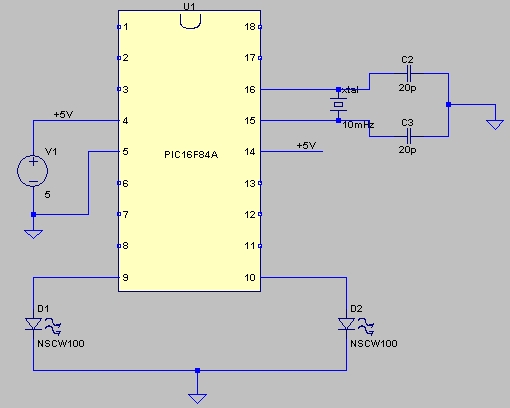
I've tried both a 10MHz crystal, as well as a 1.2MHz crystal, both worked, at different speeds, of course.
As for the 5V DC source, in the interest of expediency I cut a USB cable and found the appropriate two wires (in my case it was the red and black wires).
Source: The 5 minute intro to using the PIC16F84A microcontroller
Related projects
PIC Stepper Motor Controller using PIC16F84A with Proteus Simulation
Introduction Stepper motors are widely used in embedded systems and DIY electronics projects where precise position control is required. This PIC Stepper...
Programmers & ICSP · PIC16F84APIC Musical Doorbell using PIC16F84A with Proteus Simulation
IntroductionThis microcontroller project demonstrates a musical doorbell built around a PIC16F84A and a simple piezo sounder.Using two push buttons, the system allows...
Beginner Tutorials · PIC16C84Exploring the World of PIC Microcontrollers: An Architectural Overview
A Peripheral Interface Microcontroller (PIC), developed by General Instruments Microcontrollers in 1993, operates under software control and is programmed to execute various...
Programmers & ICSPCalculator Test using PIC24FJ64GA006 with Proteus Simulation
Introduction The Calculator Test using EASYHDL is a practical microcontroller project built on the PIC24FJ64GA006 and simulated in Proteus. This project demonstrates...
Programmers & ICSPPID Controlled Oven using TMS320F28027PT with Proteus Simulation
IntroductionThis project demonstrates a PID controlled oven implemented using a PICCOLO TMS320F28027PT microcontroller and verified through Proteus simulation.It is a practical microcontroller...
Programmers & ICSPPICCOLO Motor Controller Sample Design using TMS320F28023PT with Proteus Simulation
IntroductionThis project demonstrates a PICCOLO motor controller sample design implemented using the TMS320F28023PT Piccolo microcontroller and tested through Proteus simulation. It focuses...

Muhammad Bilal
I am a highly skilled and motivated individual with a Master's degree in Computer Science. I have extensive experience in technical writing and a deep understanding of SEO practices.