Summary of Programmable CW Morse Keyer / beacon
This article describes a mini Morse code beacon project using an STM32F0xx microcontroller. It features USB Virtual Com Port control, 5V operation, and internal flash storage for settings, allowing autonomous beaconing after initial setup.
Parts used in the Mini Beacon Keyer:
- STM32F0xx Microcontroller
- Timer14 PWM Output (Pin PA6)
- Speaker
- LED or Optocoupler connected to PTT
- GPIO Pin PA0
- Single-sided PCB
- USB VCP Driver
- DfuSe Software
- SWD Debugger (e.g., ST-Link, J-Link)
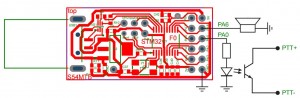
s suitable many for simple, mini projects. I attached speaker to Timer14 PWM output (Pin PA6) and LED (or optocoupler connected to PTT) to GPIO pin PA0:
 The provided software is based on USB Virtual Com Port (VCP) device. The setup is done with command line interface using terminal from any PC. The setup is stored in the internal flash and PC is not required for normal operation. The mini beacon keyer can be used when powered with 5V.
For proper operation VCP driver is required. It can be downloaded from http://www.st.com/web/en/catalog/tools/PF257938# or local copy: VCP_V1.4.0_Setup After installation connect the device, use terminal and have fun.
OK, not so quick. The microcontroller must be reprogrammed first. Every STM32F0xx come with USB bootloader from the factory. After assembling the single sided PCB, double checking all components, the real fun can start:
- Download and install DfuSe from http://www.st.com/web/en/catalog/tools/FM147/CL1794/SC961/SS1533/PF257916
- Start DfuSe and update firmware with the following DFU file https://github.com/s54mtb/stm32projects/blob/master/projects/f0-usb-beacon/Objects/MorseGenerator.dfu
- Restart the device and install VCP driver
- Connect the device and find which COM port has been assigned to the device
- Start your favorite terminal program
- Setup the device with provided commands
- Repeat step 6 if neccessary, store the setup(s)
- Enable one of the setups for autorun operation
Now the device can be used without PC. Power it with 5V, wait 10 seconds to start the autorun operation and make some “beaconing” online.
The source code is provided on GitHUB>>> https://github.com/s54mtb/stm32projects/tree/master/projects/f0-usb-beacon
The device can be re-programmed with any SWD debugger (ulink, jlink, stlink, …)
Commands reference will be provided soon. Stay tuned.
Command line interface
Different sets of commands are provided for adjusting the operation of the device: audio settings, timing running and repetition, message entry and controlling settings storage in internal flash.
When invalid command is entered, the device displays brief help:
Commands:

 AUD V/R/F/C/D

 MSG ...Text...

 MODE N/S/D

 RPT T/N/D

 RUN

 OUT P

 CAT

 STORE x

 LOAD x

 DEL x

 ID ...Text...

 STOP

 START x
For more detail: Programmable CW Morse Keyer / beacon
- How do I power the device?
The mini beacon keyer can be used when powered with 5V. - Can the device operate without a PC?
Yes, once programmed and configured, it can run autonomously by powering it on and waiting 10 seconds. - What software is required to update the firmware?
You must download and install DfuSe to update the firmware using the provided DFU file. - Which pin connects the speaker?
The speaker is attached to the Timer14 PWM output on Pin PA6. - Where is the configuration data stored?
The setup is stored in the internal flash memory of the microcontroller. - What command sets the message text?
The MSG command followed by the desired text is used to set the message. - How do I save my current settings permanently?
Use the STORE command followed by a number to save the setup to internal flash. - Can I reprogram the device if I have a debugger?
Yes, the device can be re-programmed with any SWD debugger such as ulink, jlink, or stlink. - What happens if I enter an invalid command?
The device displays a brief help message listing available commands.