
Summary of How to display custom characters on LCD using PIC16F877
This article details creating custom characters on HD44780-based LCDs using a PIC16F877 microcontroller. It explains utilizing CGRAM to define 5x8 or 5x10 character patterns by calculating byte values for dot matrices. The process involves defining arrays of these values and transmitting them to the LCD controller via specific code functions, demonstrated through Proteus simulation and MPLAB compilation.
Parts used in the Custom Character Display on LCD:
- PIC16F877 microcontroller
- 16x2 LCD with HD44780U controller
- 20 MHz crystal oscillator
- MPLAB v8.85 IDE
- HI-TECH C v9.83 compiler
- Proteus v7.10 simulation software
This post explains the idea of creating custom characters on any LCD ( e-g on 16×2 LCD ) which has HD44780U controller in it. Almost all 16×2 or 20×2 LCDs have HD44780U controller in them[1]. This controller provides the functionality of CGRAM ( Character Generator RAM ). We can write character patterns on this RAM and then they can be easily displayed on the LCD. The code for custom character generation using PIC16F877 microcontroller and Proteus simulation can be downloaded from the ‘Downloads‘ section at the bottom of this page.
If you don’t know how to interface LCD with PIC16F877 in 8bit mode, then you should read this post first. The required circuit for displaying custom characters on LCD is shown below.
PORTB is being used as data bus for the LCD. Also, RD1 pin is used as RS (Register Select for LCD) and RD0 pin is used as E (Enable pin for LCD).
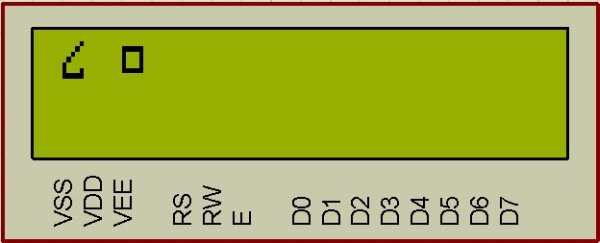
A crystal of 20 MHz is used here. You can use any crystal value from 0 to 20MHz in this circuit. Close-up picture of the LCD is shown below.
How to generate custom character ?
I am going to explain custom character generation using an example. In the figure 2, first character displayed on the LCD is named ‘Curvy Object’ in the code. To generate this character, First make a box of 8 by 5 dots. Then fill the dots required to make the custom character you want to display. Following figure explains this concept.
After filling the dots, find out the value of each line. For example, ( in the figure 3 for ‘Curvy Object’ creation ) first line has a value of 0x01, because only first dot ( at 20 position ) needs to be displayed. Then second line has a value of 0x02, because only one dot at 21 position needs to be displayed. Similarly, third line has a value of 0x04, fourth line has a value of 0x08 and fifth line has a value of 0x10. Sixth line has the two dots to be displayed, hence 0x10 + 0x01 = 0x11 is it’s value. Seventh line has all the dots to be displayed, which corresponds to a value of 0x10 + 0x08 + 0x04 + 0x02 + 0x01 = 0x1F. Eight line has no dots to be displayed, so it has a value of zero. After finding out these values make an array of these values as shown in the figure 3. This array named ‘CurvyObject‘, which has 8 bytes of data will be transmitted to the CGRAM of LCD.

We can program 8 custom characters when we are using 5×8 font in the LCD settings. And we can program 4 custom characters when we are using 5×10 font in the LCD settings. I have used 5×8 font in the code, hence at most 8 custom characters can be programmed. Using the approach to make the custom character described above, 2 custom characters were defined in the code. These custom character arrays are shown below[2].
Code
The code for the InitLCD() function is shown below[3]. This function is used to initialize the LCD properly with the custom characters.
Downloads
Custom character display on LCD code for PIC16F877 was compiled in MPLAB v8.85 with HI-TECH C v9.83 compiler and simulation was made in Proteus v7.10. To download code and Proteus simulation click here.
For more detail: How to display custom characters on LCD using PIC16F877
- Which LCD controller allows custom character generation?
The HD44780U controller provides the functionality of CGRAM for writing character patterns. - How many custom characters can be programmed with a 5x8 font?
You can program 8 custom characters when using a 5x8 font setting. - What happens if a 5x10 font is selected instead?
Only 4 custom characters can be programmed when using a 5x10 font setting. - Which pins are used for RS and Enable on the microcontroller?
RD1 is used as RS and RD0 is used as the Enable pin for the LCD. - Can I use a crystal frequency lower than 20 MHz?
Yes, you can use any crystal value from 0 to 20 MHz in this circuit. - How is the data for a custom character line calculated?
The value is determined by summing the binary positions of the dots required for that line. - What tools were used to compile and simulate the code?
The code was compiled in MPLAB v8.85 and simulated in Proteus v7.10.
