
Summary of MPLAB IDE + HI-TECH PICC LITE Compiler- Installation and Setup
Concise summary (under 100 words): This article provides step-by-step instructions to download, install, patch, and configure Microchip MPLAB IDE 6.20 and HI-TECH PICC LITE v8.01 PL3. It covers obtaining files, running installers, applying the PICC LITE patch, setting HI-TECH tool locations in MPLAB, selecting the PIC16F627 device, configuring project and build options (including linker alternate setting), and selecting/enabling the PICSTART Plus programmer for compiling and downloading programs.
Parts used in the MPLAB IDE + HI-TECH PICC LITE Compiler- Installation and Setup:
- Microchip MPLAB IDE 6.20 (mp620full.zip)
- HI-TECH PICC LITE v8.01 PL3 (picclite-setup.exe)
- PICC LITE patch (mpl6lite.zip) containing cromwell.exe, hlink.exe, picl.exe
- HI-TECH PICC Suite language tool plugin for MPLAB
- Target PIC device: PIC16F627
- PICSTART Plus programmer
Downloads
The downloads below are freely available and downloadable from Microchip and Hi-Tech websites. The MPLAB IDE and HI-TECH PIC C LITE Compiler downloads are provided here for convience. For system requirements, further details, updates, or patches consult the appropriate webpages.
- Microchip MPLAB IDE 6.20 mp620full.zip
- HI-TECH PICC LITE v8.01 PL3 picclite-setup.exe
- PICC LITE patch mpl6lite.zip
Installation
- Download the 3 files listed above
- HI-TECH PICC LITE Compiler
- Run the PICC LITE file (picclite-setup.exe)
- Follow the steps provided in the setup.
- HI-TECH PICC LITE Patch
- Unzip the PICC LITE patch (mpl6lite.zip)
- You should have 3 executables – cromwell.exe, hlink.exe, and picl.exe
- Copy these files to the bin folder of the PICCLITE installation (if you did not change the path the installation program should have placed this at C:\PICCLITE\bin)
- MPLAB IDE 6.20
- Unzip the MPLAB IDE file (mp620full.zip) and run the MPLABv6.20.00.exe
- Follow the steps provided in the setup. When you are prompted to select the third party language tool interface plugin components to install with MPLABE IDE be sure to select HI-TECH PICC SUITE
- You should be prompted to reboot your computer, if not do so.
Setup
- Start MPLAB IDE
- Set Language Tool Location Path
- Click on Project->Set Language Tool Locations…
- You should see a Set Language Tool Locations box (shown below)
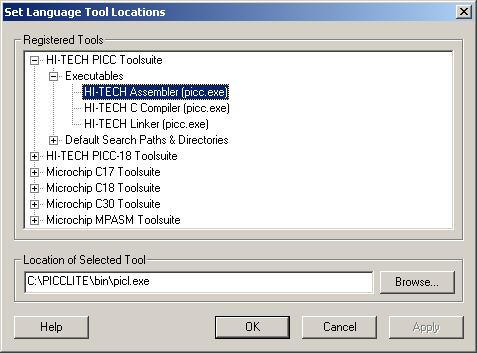
- Expand HI-TECH PICC Toolsuite
- Expand Executables
- Click on HI-TECH Assembler (picc.exe), set the location of selected tool to be C:\PICCLITE\bin\picl.exe
- Click on HI-TECH C Compiler (picc.exe), set the location of selected tool to be C:\PICCLITE\bin\picl.exe
- Click on HI-TECH Linker (picc.exe), set the location of selected tool to be C:\PICCLITE\bin\picl.exe
- Select PIC device
- Click on Configure->Select Device…
- You should see the Select Device box shown below
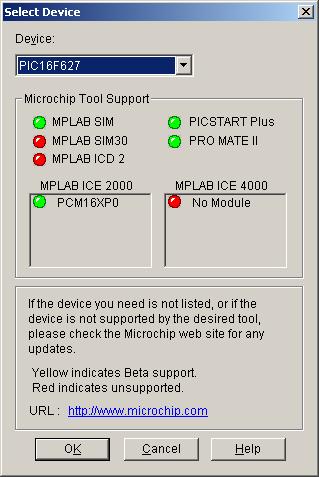
- In the drop down menu select PIC16F627, click OK
- Set Project Options
- Create a new project, Project->New…
- Provide the project name and project directory
- Specify toolsuite, Project->Set Language Toolsuite…
- You should see the following box
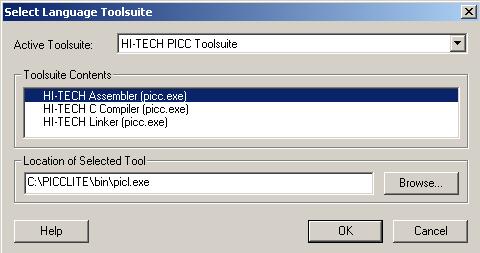
- Set Build Options, Project->Build Options…->Project
- Select the HI-TECH Linker Tab, you should see the following
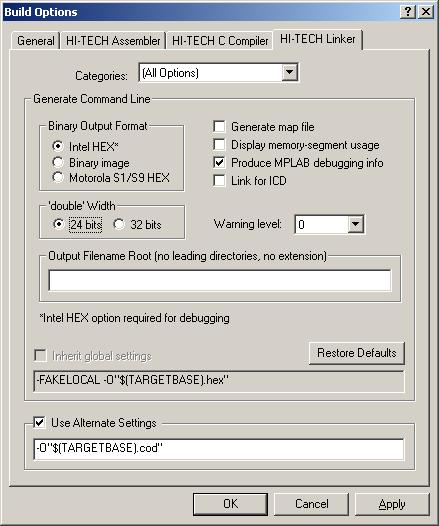
- Check the Alternate Setting box and set it to -O”$(TARGETBASE).cod”, click OK
- Configure PIC Burner
- Select Programmer, Programmer->Select Programmer->PICSTART Plus
- Activate Programmer, Programmer->Enable Programmer
- You should now be ready to compile and download programs.
Source: MPLAB IDE + HI-TECH PICC LITE Compiler- Installation and Setup
- Where can I download the required files for installation?
The downloads are freely available from Microchip and Hi-Tech websites and listed in the article: mp620full.zip, picclite-setup.exe, and mpl6lite.zip. - How do I install HI-TECH PICC LITE?
Run picclite-setup.exe and follow the setup steps provided in the installer. - What do I do with the PICC LITE patch mpl6lite.zip?
Unzip mpl6lite.zip to obtain cromwell.exe, hlink.exe, and picl.exe and copy them to the PICCLITE bin folder (default C:PICCLITEbin). - How do I install MPLAB IDE 6.20?
Unzip mp620full.zip, run MPLABv6.20.00.exe, follow setup steps, and select HI-TECH PICC SUITE when prompted for third party language tool plugins. - How do I set the HI-TECH tool locations in MPLAB?
In MPLAB, go to Project -> Set Language Tool Locations, expand HI-TECH PICC Toolsuite -> Executables, and set HI-TECH Assembler, C Compiler, and Linker to C:PICCLITEbinpicl.exe. - How do I select the PIC device?
In MPLAB, click Configure -> Select Device and choose PIC16F627 from the drop-down menu, then click OK. - How do I set project and build options for HI-TECH tools?
Create a new project (Project -> New), set the language toolsuite (Project -> Set Language Toolsuite), then open Project -> Build Options... -> Project and configure the HI-TECH Linker alternate setting to -O"$(TARGETBASE).cod". - How do I configure the PICSTART Plus programmer?
In MPLAB, select Programmer -> Select Programmer -> PICSTART Plus and then enable it via Programmer -> Enable Programmer. - Do I need to reboot after installing MPLAB?
The installer should prompt you to reboot; if it does not, you should reboot your computer. - How do I ensure the HI-TECH tools are used when building?
Install the HI-TECH PICC Suite plugin during MPLAB setup and set the language tool locations and project toolsuite options to HI-TECH PICC.
