Summary of 3Drag as a CNC milling machine: Creating G-Code via EAGLE software
This article explains how to generate G-Code files for milling a single-sided PCB using the 3Drag CNC machine and EAGLE software. It details the installation of the PCB-gcode plugin within EAGLE to export compatible .nc files for track patterning and drilling, followed by the necessary steps to download, install, and configure both the software and plugin for successful operation.
Parts used in the 3Drag PCB Milling Project:
- 3Drag CNC milling machine
- EAGLE PCB design software (freeware)
- PCB-gcode plugin (version 3.6.0.4)
- G-Code files (.nc format)
- Repetier-Host software
- Yahoo account (for plugin download)
To create a PCB with 3Drag , by milling , it is necessary to have the G-Code files for the tracks patterning and for the holes relating to the printed circuit board itself. In this section we describe how to obtain these G-Code files using a specific plugin for the popular PCB design software ” EAGLE “.
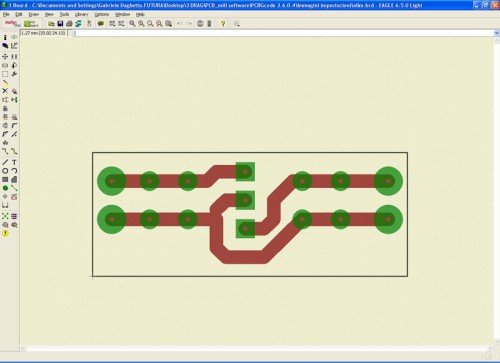
Note: This operation can be done only if the PCB you want was created with EAGLE .
The PCB- gcode plugin allows to create the G-code files for patterning the top copper tracks, bottom copper and also that relating to the drilling of the base created with the freeware program EAGLE . It also allows to define the extension of the file that must be exported ( .nc) so that it is compatible with Repetier -Host.
In succession we described here the procedure to create a simple single-sided PCB by milling incision.
– The first operation is to download the software EAGLE from CadSoft download by choosing the version for your operating system.
– Carry out EAGLE freeware installation launching the .exe file
– Download the PCB – gcode (version taken into consideration: 3.6.0.4 ) from this web site (you must have a YAHOO account) or download from the dedicated forums .
– Unzip the folder and then copy the files in the ULP folder of EAGLE.
– Start EAGLE, click on File/Open/Board and select the file of the PCB that you want to create by milling .
For more detail: 3Drag as a CNC milling machine: Creating G-Code via EAGLE software
-
What is required to create a PCB with 3Drag?
You need G-Code files for tracks patterning and holes, obtained using the PCB-gcode plugin for EAGLE. -
Can this process be done if the PCB was not created with EAGLE?
No, this operation can only be performed if the PCB was created with EAGLE. -
How do you ensure file compatibility with Repetier-Host?
The PCB-gcode plugin allows you to define the file extension as .nc for compatibility. -
Where can I download the PCB-gcode plugin?
You can download it from the provided website requiring a Yahoo account or from dedicated forums. -
Which version of the PCB-gcode plugin is mentioned?
The version taken into consideration is 3.6.0.4. -
What are the first two steps to set up the software?
First, download and install EAGLE from CadSoft, then download and unzip the PCB-gcode plugin. -
Where should the plugin files be placed after unzipping?
The files must be copied into the ULP folder of EAGLE.
What does the PCB-gcode plugin allow you to create?
It creates G-code files for top copper tracks, bottom copper, and drilling the base.