


Summary of GPIO Functions on STM8S using Cosmic C and SPL – Blinking and Controlling LED with Push Button
This tutorial guides users through GPIO functions on the STM8S103F microcontroller using an LED blinking project. It covers hardware setup, connecting an onboard LED to PB5 and an external LED with a push-button to PA3 and PA2 respectively. The article explains pinout selection logic, datasheet interpretation for input/output modes (floating, pull-up, open-drain, push-pull), speed settings, and current capabilities like High Sink and True Open Drain types.Parts used in the STM8S103F GPIO Control Project:
- STM8S103F3 Development Board
- Onboard LED connected to PB5
- External LED connected to PA3
- Push-button connected to PA2
- ST-link programmer
- Standard Peripheral Libraries (SPL)
- Cosmic C compiler
For microcontrollers, an LED blinking program is equivalent to the “hello world” program. In our previous tutorial, we learned how to get started with STM8S103F3 Development Board and how to set up the IDE and compiler to program our STM8S controllers. We have also learned how to use the standard peripheral libraries, and how to compile and upload the code into our microcontroller. With all the basics covered, lets actually start writing code. In this tutorial, we will learn how to perform general GPIO functions on STM8S controllers. The board already has an onboard LED connected to pin 5 of port B, we will learn how to blink this LED and also add an external LED and control it with a push-button. If you are completely new, it is highly recommended to read the previous tutorial before you proceed any further.
Getting the Hardware Ready
Before we dive into the program, let get the hardware connections ready. As mentioned early, we will be using two LEDs here, one is an onboard LED which will blink continuous and the other is an external LED which will be toggled with a push button. The idea is to learn all the GPIO functionality in a simple set up. The on-board Led is already connected to PB5 (pin5 of PORTB), so I have just connected an LED to PA3 and a push-button to PA2, as you can see in the diagram below.
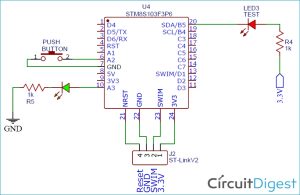
But, of all the output pins available on our controlled why did I select PA3 for output and PA2 for input? The questions are valid and I will explain that later in this article. My hardware set-up for this tutorial is shown below. As you can see, I have also connected my ST-link programmer to programming pins which will not only program our board but will also act as a power source.
Understanding GPIO Pinouts on STM8S103F
Now coming back to the question, why PA2 for input and why PA3 for output? To understand that, let's take a closer look at the pinout of the microcontroller which is shown below.
As per the pinout diagram, we have four ports on our microcontroller, namely, PORT A, B, C, and D denoted by PA, PB, PC, and PD respectively. Each GPIO pin is also clubbed with some other special functionality. For example, the PB5 (pin 5 of PORT B) can not only work as a GPIO pin but also as an SDA pin for I2C communication and as a Timer 1 output pin. So, if we use this pin for simple GPIO purposes like connecting an LED, then we won’t be able to use I2C and the LED at the same time. Sadly, the on-board LED is connected to this pin, so we don’t have much of a choice here, and in this program, we are not going to use I2C, so it's not much of a problem.
Pinout Description and Tips for STM8S103F GPIO Selection
Truly speaking, it would not hurt to use PA1 an input pin and it would just work pin. But I deliberately brought this up to provide me an opportunity to show you some common traps that you might fall into when selecting GPIO pins on a new microcontroller. The best to avoid the traps is to read the pin details and pin description provided in the STM8S103F3P6 datasheet. For the STM8S103F3P6 microcontroller pin description details that are mentioned in the datasheet are shown below images.
The input pins on our microcontroller can either be floating or weak pull-up and the output pins can either be Open Drain or Push-pull. The difference between Open Drain and Push-Pull Output pins is already discussed, hence we won’t get into details of that. To put it simple, an Open Drain output pin can make the output only as low not as high, while a push-pull output pin can make the output both as high as well as high.
Apart from that from the above table, you can also notice that an output pin can either be Fast output (10 Mhz) or Slow Output (2 MHz). This determines the GPIO Speed, if you want to switch your GPIO pins between high and low very fast, then we can choose Fast output.
Some GPIO pins on our controller support True Open Drain (T) and High Sink Current (HS) as mentioned in the above image. A considerable difference between Open Drain and True Open Drain is that the output connected to open drain cannot be pulled high more than the operating voltage of microcontroller (Vdd) while a true open-drain output pin can be pulled higher than Vdd. Pins with High Sink Capability means that it can sink more current. The source and sink current of any GPIO HS pin is 20mA, while the power line can consume up to 100 mA.
Taking a closer look on the above image, you will notice that almost all GPIO pins are High Sink Current (HS) type except for PB4 and PB5 which are True Open Drain Type(T). This means that these pins cannot be made high, they will not be able to provide 3.3V even when the pin is made high. This is why the onboard led is connected to a 3.3V and grounded through PB5 instead of powering it directly from the GPIO pin.
Source: GPIO Functions on STM8S using Cosmic C and SPL – Blinking and Controlling LED with Push Button
Quick Solutions to Questions related to STM8S103F GPIO Control Project:
- Why was PA3 selected for output and PA2 for input?
The author chose these pins to demonstrate common traps in GPIO selection and to illustrate specific pin characteristics found in the datasheet. - What is the difference between Open Drain and Push-Pull output pins?
An Open Drain output can only make the signal low, whereas a Push-Pull output can make the signal both high and low. - How does GPIO speed affect the microcontroller?
GPIO speed determines how fast pins switch between high and low states, with options for Fast output at 10 MHz or Slow output at 2 MHz. - What is the maximum source and sink current for HS pins?
Pins with High Sink Capability can handle 20mA of source and sink current each, while the total power line can consume up to 100 mA. - Why is the onboard LED connected to 3.3V instead of directly from the GPIO pin?
PB4 and PB5 are True Open Drain type pins that cannot be made high to provide 3.3V, so the LED is powered by 3.3V and grounded through the pin. - Can I use PB5 for I2C communication and an LED simultaneously?
No, because PB5 serves multiple functions; using it for an LED prevents simultaneous use of I2C communication on that pin. - What should new users read before starting this tutorial?
New users are highly recommended to read the previous tutorial covering IDE setup, compiler configuration, and code uploading basics. - Where can I find detailed information about GPIO pin descriptions?
Users should consult the STM8S103F3P6 datasheet for accurate pin details and to avoid selection traps.
Related projects
An Application-Driven Microcontroller Curriculum
Understanding how to apply microcontrollers lies at the core of modern embedded systems education. This student project takes an experiential approach to...
LED ProjectsBuild this microcontroller controlled rainbow flying disc – and then throw it!
Hello all and welcome to this super simple and inexpensive instructable. If you like throwing frisbees AND you like flashing lights AND...
LED ProjectsLED Scrolling Display Project Working With Circuit Diagram
We normally use a simple static LED display screen to convey a message. Earlier, when we want to display large data, we...
LED Projects8051 MICROCONTROLLER
8051 Microcontroller based electronic locker system CIRCUIT DESCRIPTION Security is a prime concern in our day-today life. Everyone wants to be as...
LED ProjectsDigital Temperature Sensor Circuit
Temperature sensors are widely used in electronic equipments to display the temperature. You can see the digital clock displaying the room temperature...
LED ProjectsPassword Based Door Lock System using 8051 Microcontroller
Traditional lock systems using mechanical lock and key mechanism are being replaced by new advanced techniques of locking system. These techniques are...

Muhammad Bilal
I am a highly skilled and motivated individual with a Master's degree in Computer Science. I have extensive experience in technical writing and a deep understanding of SEO practices.