Summary of PCBDRAW – KICAD BOARD INTO A NICE LOOKING 2D DRAWING
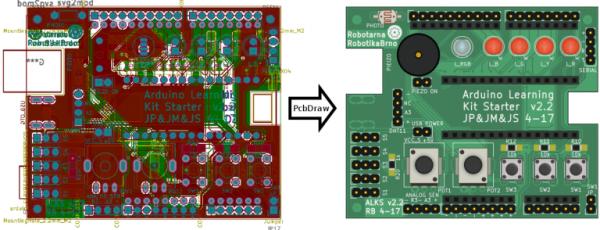
This script (PcbDraw) converts KiCAD .kicad_pcb files into clean 2D SVG board drawings for easy pinout diagrams, using pcbnew and an external SVG module library (PcbDraw-Lib). It supports custom styles, component remapping, placeholders for missing modules, and options like listing components or disabling drill-hole transparency.
Parts used in the PcbDraw Project:
- pcbnew Python module (from KiCAD)
- argparse Python module
- lxml Python module
- PcbDraw Python script (pcbdraw.py)
- PcbDraw-Lib (module library of SVG footprints)
- Style JSON files (color theme definitions)
- Remap JSON file (optional component-to-module mapping)
- Input KiCAD board file (*.kicad_pcb)
- Output SVG file path
This small Python script takes a KiCAD board (.kicad_pcb file) and produces a 2D nice looking drawing of the board as an SVG file. This allows you to quickly and automatically create awesome pinout diagrams for your project. These diagrams are much easier to read than a labeled photo of a physical board or an actual KiCAD design.
You and your users will love them!
Dependencies
This script requires the pcbnew Python module (should come with KiCAD), the argparse and lxlml modules. No other dependencies are needed.
PcbDraw also needs a module library to work. This library is maintained as a separate repository: PcbDraw-Lib.
Usage
Usage of PcbDraw is simple, just run:
./pcbdraw.py <libraries> <output_file> <input_file>
librariesis a comma separated list of paths to directories containing module libraries. Modules are component footprints in SVG format.output_fileis a path to an output SVG fileinput_fileis a path to an*.kicad_pcbfile
The script will output several debug messages of KiCAD Python API you can ignore. I haven’t found a way to disable them. If there is a missing module in the libraries, the script will output warning.
There are several options for the script:
--style=<JSON_file>specifies color theme for the board. Default is a green board, other styles can be found in thestylesdirectories.--list-componentsprints a list of all components from the front side of PCB. Doesn’t produce drawing.--placeholdershows a red square in the drawing for missing modules.--remaptakes a path to a JSON file containing a dictionary from component references to alternative modules to change a module for given component. This allows you to e.g. choose different colors for LEDs without a need to change original board and create new packages for different colors. Format of dictionary entry is"<ref>": "<library>:<module>"– e.g."PHOTO1": "Resistors:R_PHOTO_7mm".--no-drillholesdo not make the drill holes transparent.
Writing Custom Styles
Style is a JSON file contain color definitions for the board substrate (they don’t have any effect on modules):
{
    "copper": "#417e5a",
    "board": "#4ca06c",
    "silk": "#f0f0f0",
    "pads": "#b5ae30",
    "outline": "#000000"
}
Colors are in HEX format, names of the colors should be self descriptive.
Module Library
Library is a collection of SVG files each containing one drawing of a component. The library structure follows KiCAD library structure – each footprint (module) is a separate file placed in directories representing libraries.
It is also possible to have multiple libraries with different component style.
All the details about the library can be found in its repository. Note that the library is essential for this script and unfortunately it is still incomplete – contributions are welcomed! Drawing a single component from scratch takes less than 10 minutes, which is not much time. Please, send a pull-request for components you have created.
When specifying multiple module libraries, the first library path to match a given footprint is used for rendering. The lookup order is the same you wrote the <libraries> list.
Eagle Boards
Boards from Eagle CAD are not supported directly now. You can import an Eagle board into KiCAD and then feed it into PcbDraw. This works fine (PcbDraw can deal with different layer names, etc.), however there are minor flaws with the import and user labels and via stitching can disappear (which is usually fine for the purposes of drawing).
Read More: PCBDRAW – KICAD BOARD INTO A NICE LOOKING 2D DRAWING
- What does PcbDraw do?
PcbDraw converts a KiCAD .kicad_pcb file into a 2D SVG drawing for pinout diagrams. - What dependencies are required to run PcbDraw?
PcbDraw requires the pcbnew Python module, argparse, and lxml; it also needs the PcbDraw-Lib module library. - How do you run PcbDraw?
Run ./pcbdraw.py <libraries> <output_file> <input_file> with libraries as comma separated library paths, output_file as SVG path, and input_file as a .kicad_pcb file. - How can I change the board colors?
Use --style=<JSON_file> with a JSON style file specifying color hex values for copper, board, silk, pads, and outline. - Can PcbDraw list components without producing a drawing?
Yes, use the --list-components option to print front-side component list; it does not produce a drawing. - How does PcbDraw handle missing module footprints?
The script outputs a warning for missing modules and with --placeholder it shows a red square for missing modules in the drawing. - How can I substitute a different module for a component?
Use --remap with a JSON file mapping component references to library:module strings to choose alternative modules per component. - Does PcbDraw support Eagle boards directly?
No; import Eagle boards into KiCAD first, then feed the resulting KiCAD board file to PcbDraw. - Can I use multiple module libraries?
Yes; provide multiple library paths separated by commas and the first matching library path is used for each footprint lookup.