
Summary of PIC16f877 based simple calculator project
This article describes a simple one-digit calculator implemented on a PIC16F877 using a keypad and LCD. Written in C (HI-TECH C) and developed in MPLAB, it supports addition, subtraction, multiplication, and division, with error handling and a clear/reset button. The project includes Proteus simulation and downloadable code.
Parts used in the PIC16F877 Calculator:
- PIC16F877 microcontroller
- Keypad (matrix keypad for digits and function keys)
- 16x2 LCD display
- Proteus simulation software (for circuit diagram and simulation)
- MPLAB IDE (used for compiling)
- HI-TECH C compiler (v9.83)
- Power supply (regulated for PIC16F877)
- Wiring and prototyping components (connectors, resistors as needed)
This PIC microcontroller tutorial provides a simple calculator implementation for PIC16F877 microcontroller. This is a simple one digit[1] calculator which implements only 4 functions addition(+), subtraction(-), multiplication(x) and division(/). The code for PIC16F877 is written in C language using MPLAB with HI-TECH C compiler. You can download this code from the ‘Downloads‘ section at the bottom of this page.
In this post, it is assumed that you know,
- How to interface keypad with PIC16F877 microcontroller. If you don’t then please read this page.
- How to interface LCD with PIC16F877 microcontroller. If you don’t then please read this page.
The following diagram (made in Proteus) shows the PIC microcontroller circuit diagram.
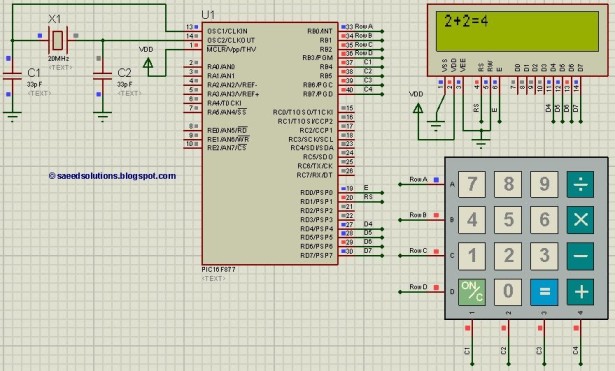
| Figure 1. Circuit diagram for implementing calculator on PIC16F877 |
In the above figure, we can see that a result of “2+2=4” is shown on the screen. To achieve this result, first press ‘2’ from the keypad. Then press ‘+’ and then press ‘2’ again. After that, on pressing ‘=’ from the keypad the result ‘4’ is automatically displayed on the screen.
Features of this calculator
- You can give any single digit input from 0 to 9.
- You can press ‘ON/C‘ button at any time to reset the calculator.
- 4 functions are implemented i-e addition, subtraction, multiplication and division.
- Error messages are displayed if wrong input is detected. For example, if calculator is expecting a number, but a function key is pressed then ‘Wrong Input‘ message is displayed. Similarly, ‘Wrong Function‘ message is displayed if wrong key is pressed instead of a function key.
Main function code
The code for the main function is shown below.
/*  Name     : main.c
 *  Purpose  : Main file for calculator code for PIC16F877.
 *  Date     : 25-11-12
 *  *  Revision : None
 */
#include "Includes.h"

// Configuration word for PIC16F877
__CONFIG( FOSC_HS & WDTE_OFF & PWRTE_ON & CP_OFF & BOREN_ON
		& LVP_OFF & CPD_OFF & WRT_ON & DEBUG_OFF);

// Main function
void main(void)
{
	char key;           // Key char for keeping record of pressed key
	int num1 = 0;       // First number
	char func = '+';    // Function to be performed among two numbers
	int num2 = 0;       // Second number

	InitKeypad();       // Initialize Keypad
	InitLCD();			// Initialize LCD

   while(1)
   {
     //get numb1
     key = GetKey();
     ClearLCDScreen();	    	// Clear LCD screen
	 WriteDataToLCD(key);       // Echo the key pressed to LCD
	 num1 = get_num(key);       // Get int number from char value, it checks for wrong input as well

	 if(num1!=Error)            // If correct input then proceed, num1==Error means wrong input
	 {
		 //get function
		 key = GetKey();
		 WriteDataToLCD(key);             //Echo the key pressed to LCD
		 func = get_func(key);            //it checks for wrong func

		 if(func!='e')                    //if correct input then proceed, func=='e' means wrong input
		 {
			 //get numb2
			 key = GetKey();
			 WriteDataToLCD(key);         //Echo the key pressed to LCD
			 num2 = get_num(key);         //Get int number from char value, it checks for wrong input as well

			 if(num2!=Error)              //if correct input then proceed, num2==Error means wrong input
			 {
				 //get equal sign
				 key = GetKey();
				 WriteDataToLCD(key);     //Echo the key pressed to LCD

				 if(key == '=')           //if = is pressed then proceed
				 {
					 switch(func)         //switch on function
					 {
					 case '+': disp_num(num1+num2); break;
					 case '-': disp_num(num1-num2); break;
					 case 'x': disp_num(num1*num2); break;
					 case '/': disp_num(num1/num2); break;
					 }
				 }
				 else				      //key other then = here means error wrong input
				 {
					 if(key == 'C')       //if clear screen is pressed then clear screen and reset
						ClearLCDScreen(); // Clear LCD screen
					 else
						DispError(0); 	  //Display wrong input error
				 }
			 }
		 }
     }
   }
}

/*
 * Functions used inside main for
 * making calculator are shown below
 */

int get_num(char ch)         //convert char into int
{
	int num = 0;

	switch(ch)
	{
		case '0': num = 0; break;
		case '1': num = 1; break;
		case '2': num = 2; break;
		case '3': num = 3; break;
		case '4': num = 4; break;
		case '5': num = 5; break;
		case '6': num = 6; break;
		case '7': num = 7; break;
		case '8': num = 8; break;
		case '9': num = 9; break;
		case 'C': ClearLCDScreen(); num = Error; break;  //this is used as a clear screen and then reset by setting error
		default: DispError(0); num = Error; break;       //it means wrong input
	}

	return num;
}

char get_func(char chf)            //detects the errors in inputted function
{
	if(chf=='C')                   //if clear screen then clear the LCD and reset
	{
		ClearLCDScreen();          //clear display
		return 'e';
	}

	if( chf!='+' && chf!='-' && chf!='x' && chf!='/' )  //if input is not from allowed funtions then show error
	{
		DispError(1);
		return 'e';
	}

	return chf;                        //function is correct so return the correct function
}

void DispError(int numb)           //displays differet error messages
{
	ClearLCDScreen();              //clear display

	switch(numb)
	{
	case 0: 	WriteStringToLCD("Wrong Input");      break;
	case 1: 	WriteStringToLCD("Wrong Function");   break;
	default:    WriteStringToLCD("Wrong Input");      break;
	}
}

void disp_num(int numb)            //displays number on LCD
{
	unsigned char UnitDigit  = 0;  //It will contain unit digit of numb
	unsigned char TenthDigit = 0;  //It will contain 10th position digit of numb

	if(numb<0)
	{
		numb = -1*numb;          // Make number positive
		WriteDataToLCD('-');	 // Display a negative sign on LCD
	}

	TenthDigit = (numb/10);	                  // Findout Tenth Digit

	if( TenthDigit != 0)	                  // If it is zero, then don't display
		WriteDataToLCD(TenthDigit+0x30);	  // Make Char of TenthDigit and then display it on LCD

	UnitDigit = numb - TenthDigit*10;

	WriteDataToLCD(UnitDigit+0x30);	  // Make Char of UnitDigit and then display it on LCD
}
In the main code, firstly keypad and LCD are initialized. Then the code waits for the first number[1] from the keypad. After getting this number LCD screen is cleared. And this number is displayed on the LCD. After that, code waits for the function key[2] from the user. After getting the function key, code waits for the second number[1] and then the equal sign. After getting the equal sign, according to the desired function the result is calculated and displayed on the screen.
You can leave your comments in the comment section below.
Notes and References
[1] You can give any single digit input from 0 to 9.
[2] You can select any function i-e ‘+’ or ‘-‘ or ‘x’ or ‘/’.
Downloads
The calculator code for PIC16F877 was compiled in MPLAB v8.85 with HI-TECH C v9.83 compiler and simulation was made in Proteus v7.10. To download code and Proteus simulation click here.
- What operations does the calculator support?
The calculator supports addition, subtraction, multiplication, and division. - How many digits can I input?
You can input any single digit from 0 to 9. - How do I reset the calculator?
Press the ON/C button at any time to clear the LCD and reset the calculator. - What happens if I press a function key when a number is expected?
The calculator displays Wrong Input error. - What happens if I press a non-function key when a function is expected?
The calculator displays Wrong Function error. - Which tools and compilers were used to develop and simulate the project?
The code was compiled in MPLAB v8.85 with HI-TECH C v9.83 and simulated in Proteus v7.10. - In what language is the PIC code written?
The code is written in C language using HI-TECH C compiler. - How is the result displayed after entering inputs?
After entering number, function, second number, and pressing = the result is calculated and displayed on the LCD.
